
Multiple users can be added to an account. This allows all users at a company to share a plan, the job postings associated with it and a careers page.
Here's how:
1. Account Owner signs up for an account - The first person to sign up will be the account administrator and control what access other users have.
2. Account Owner invites other users
- Click on the Account menu

- Click on the Users tab

- Click on the Add a New User button

4.
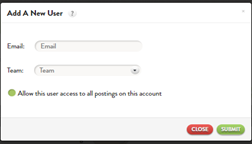
5. Enter the email addresses of the new users you would like to add.
6. To assign a user to a team, type in a new team name into the team box, or select one of the teams already created from the dropdown menu.
7. Select the green radio button below teams if you want the user to have access to all job postings on the account.
8. Click on Submit to send them an invite.
9. Press Done when all desired users have been added.
- Assigning a job to a team – to assign a job to a team use the following steps:
1) Login to your account
2) Select the radio button the left of the job you want to assign
3) From the Action dropdown menu, select Change Owner.
4) From the Change Owner popup, select one of the users on the team you want to see the job. All users on the team will now be able to see it.
- Users receive email and sign-up- All invited users will receive an email. If this does not arrive, please check the spam folders. If they click on the link provided, they can accept the invite for your company’s Fitzii account, create a password, and start using the account.
The administrator can check on the status of the invites by viewing the User screen accessible through the Account button on the job dashboard. Accepted invites are represented by a green check mark and pending invites by a clock icon.
If a user you would like to invite has already signed up for an account independently, please contact us to link them to your company account manually.
Extra Tips:
Users of an account have access to all the same features as the administrator with the following exceptions:
- Managing Users - only the account administrator can add and remove users and manage teams.
- Careers Page - only the account administrator can edit and configure the company careers page.
- Subscription – only the administrator can upgrade or downgrade the account plan
On the job manager page, users can toggle to view their own jobs and applicants, their team's jobs and applicants, and if authorized by the account administrator, all of the company's jobs and applicants

1 Comments